Part 1 — Get started
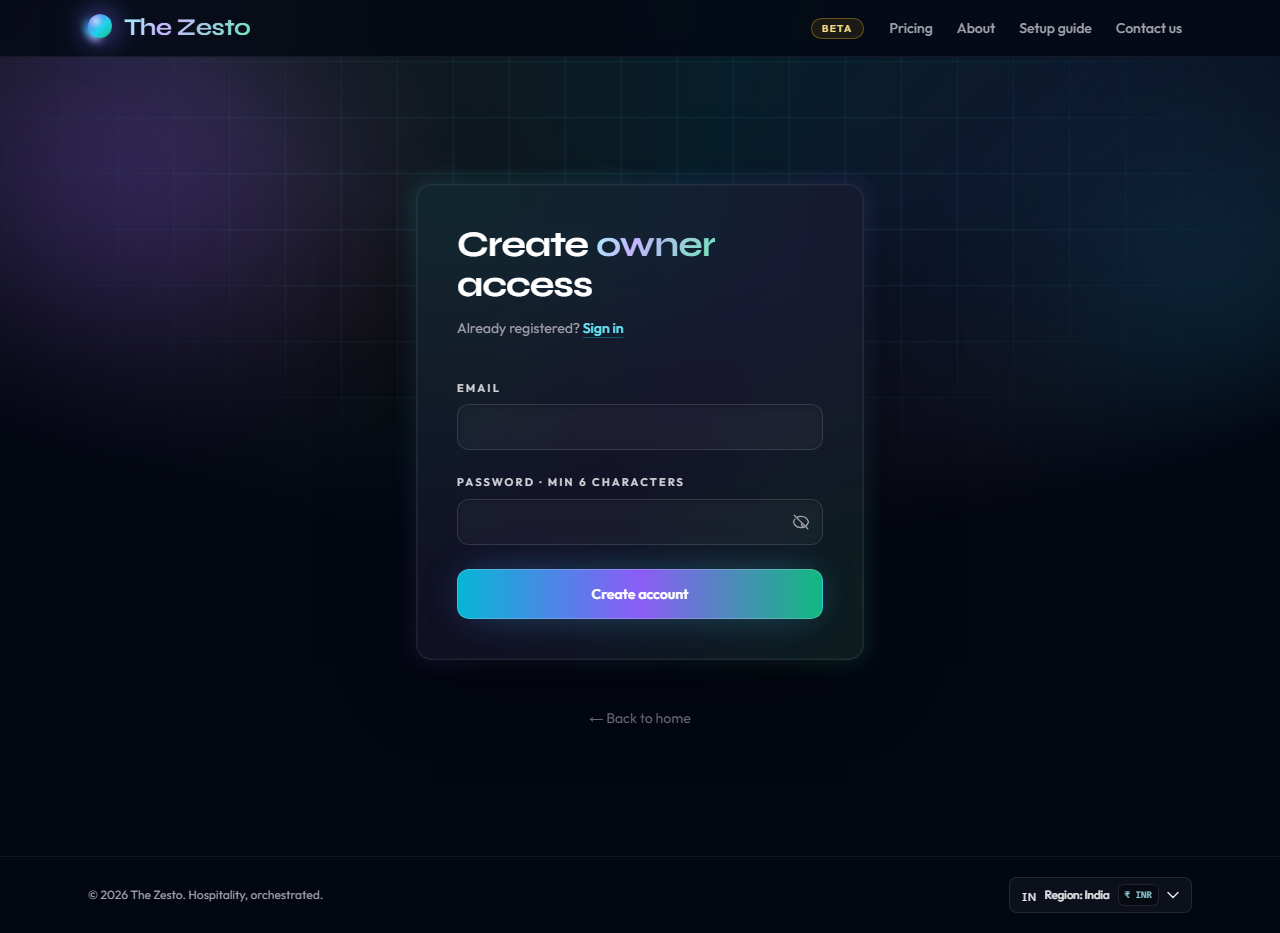
Create an owner account
Owner login is separate from the venue. One account can own multiple venues later.
- Open Sign up and enter email plus a password (min. 6 characters).
- Click Create account.
- If email confirmation is enabled, confirm from the inbox before signing in.
Go to Create an owner account →
Set up the restaurant
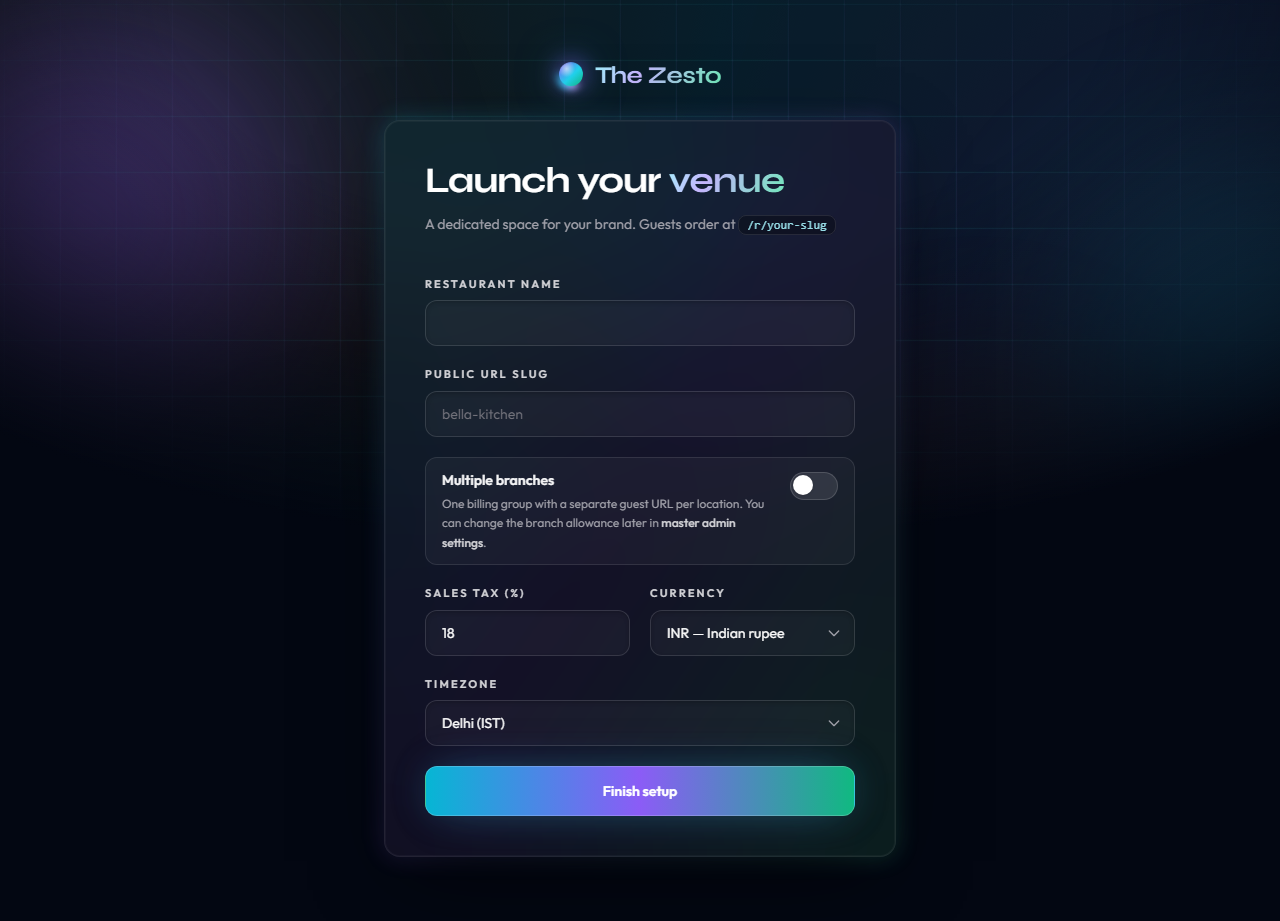
After sign-up, a short form creates the venue: name, public slug, tax, currency, and timezone.
- Enter the restaurant name (shown on menus and receipts).
- Choose a public slug — for example my-cafe becomes /r/my-cafe.
- Set sales tax, currency, and timezone.
- Optionally enable Multiple branches for more locations on one billing account.
- Click Finish setup to open the dashboard.
Sign in
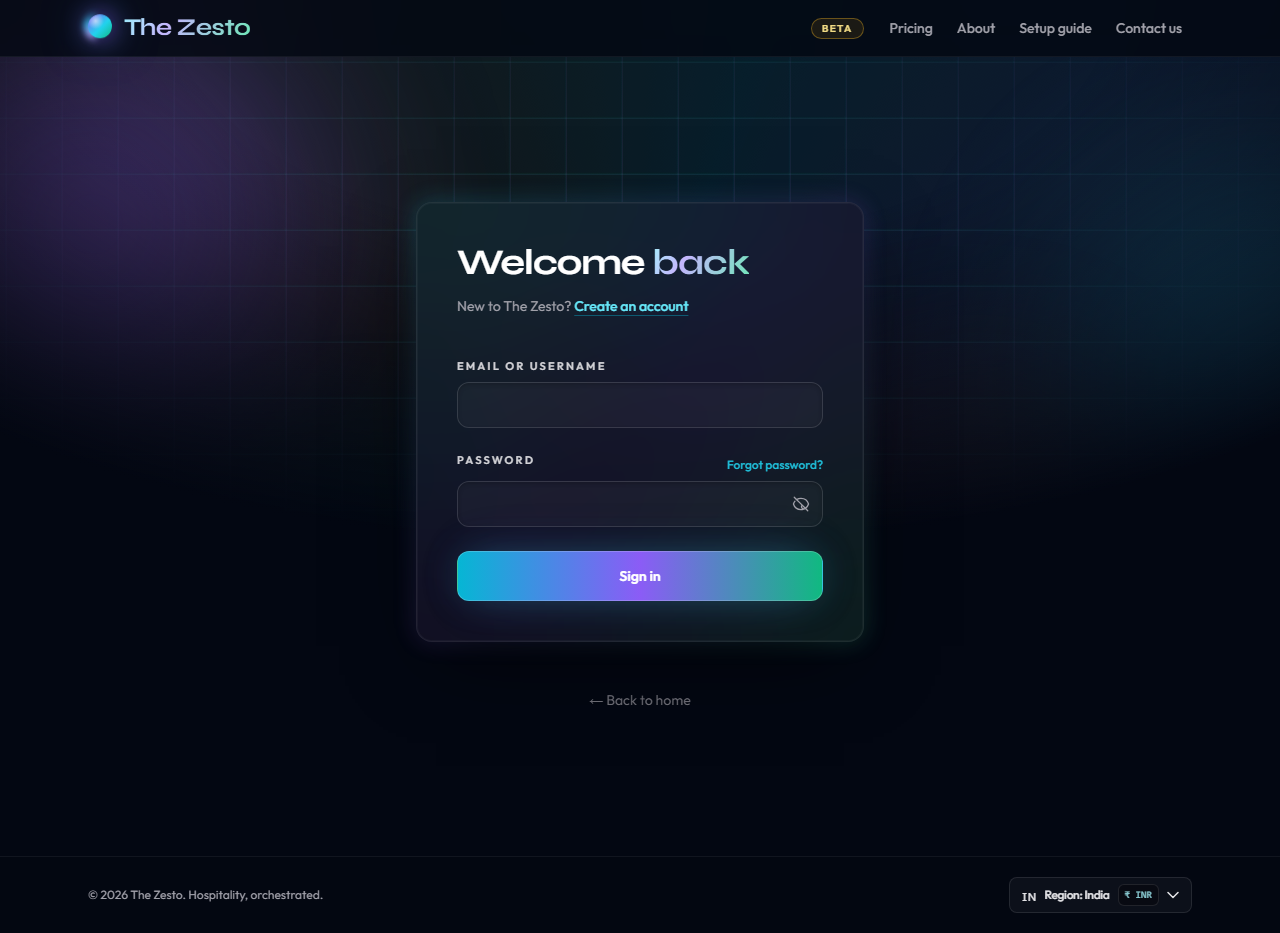
Return visits use the same email and password. Landing screen is Overview.
- Open Login and enter email and password.
- Click Sign in.
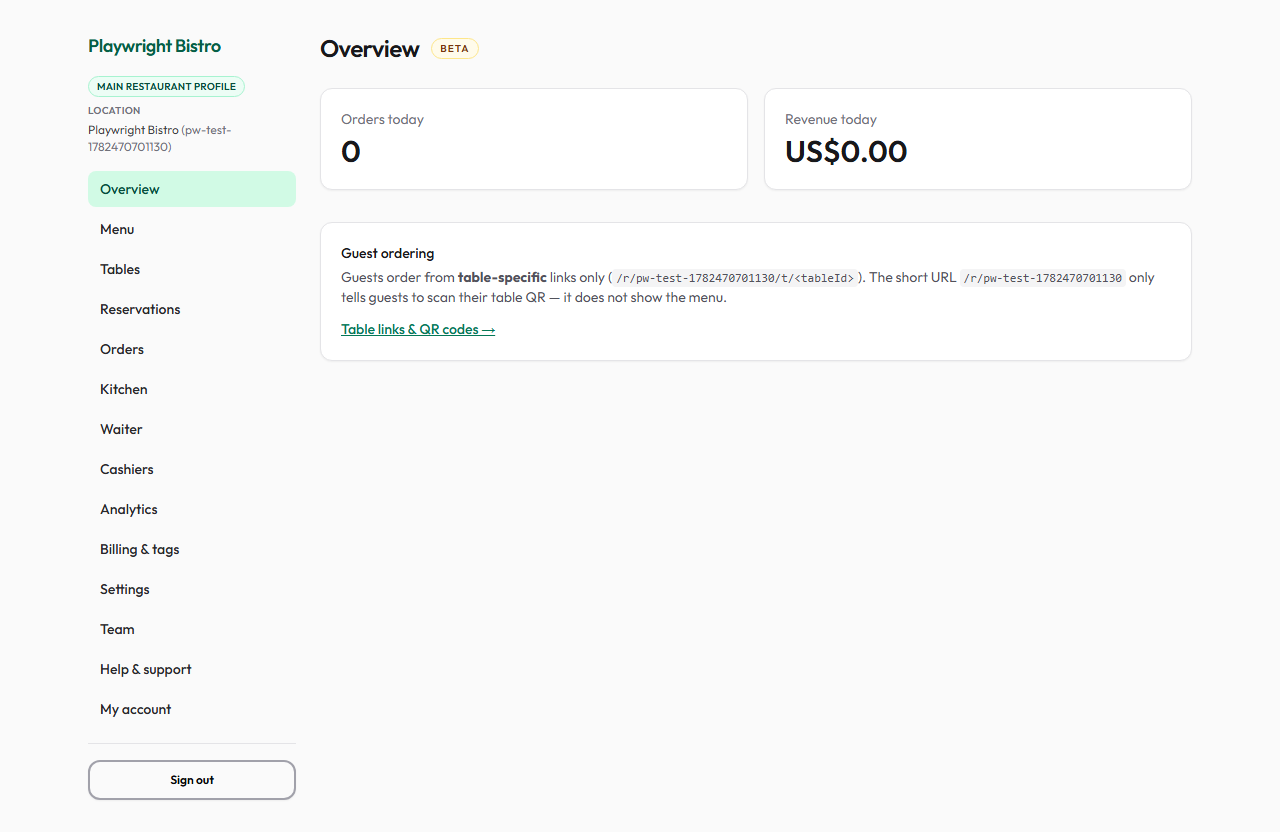
- Overview shows today’s orders and revenue.
Part 2 — Dashboard tabs
Overview
Daily snapshot: orders and revenue for the current day.
- Check Orders today and Revenue today during service.
- Use the Tables link for QR codes or table links.
- Switch locations from the sidebar header when multiple venues exist.
Menu
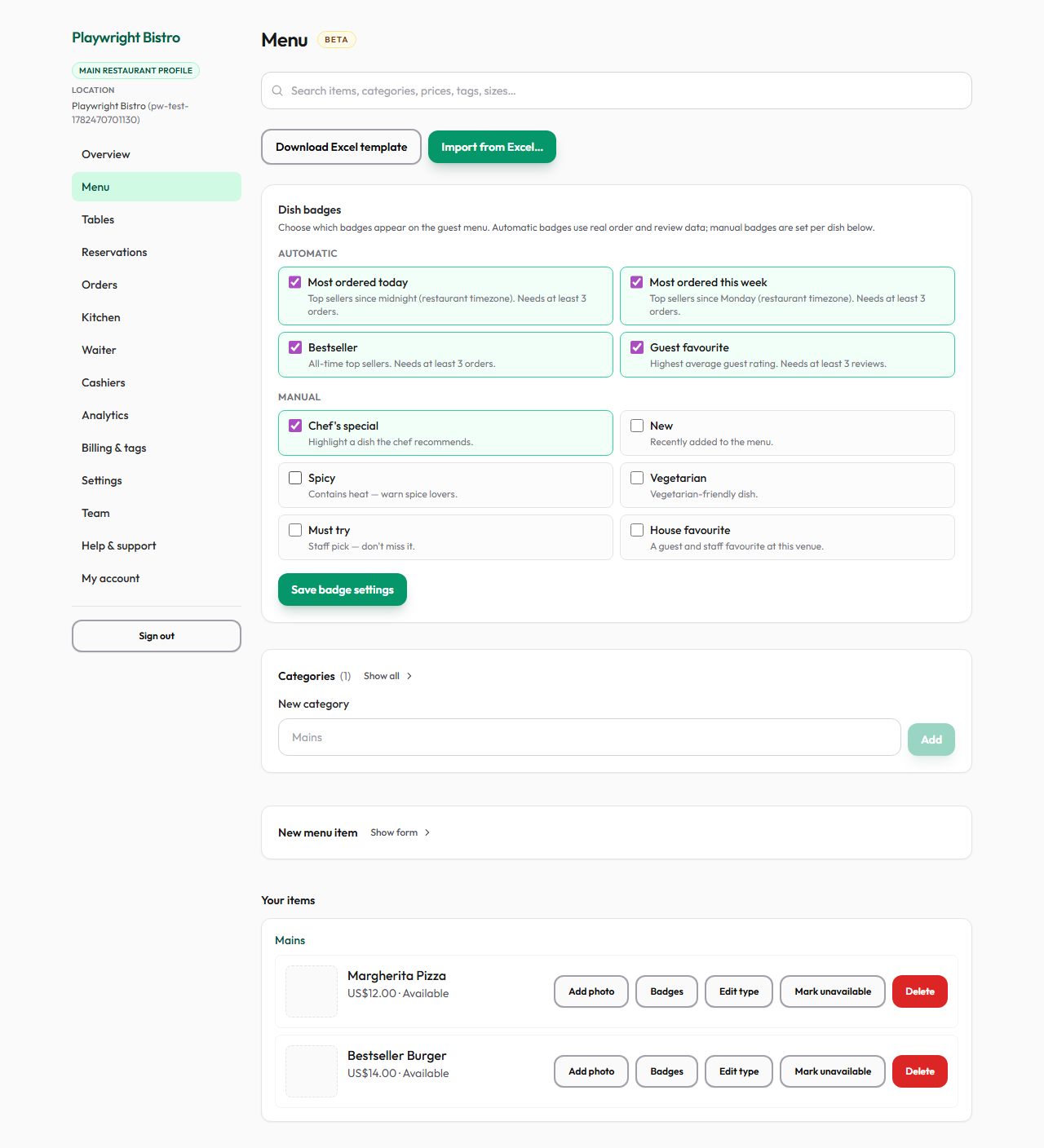
Categories and items with prices, photos, and availability.
- Add a category, then items with name, price, and description.
- Upload and crop a photo before publish.
- Turn availability off to hide an item without deleting it.
- Use Import for spreadsheet bulk load.
Tables
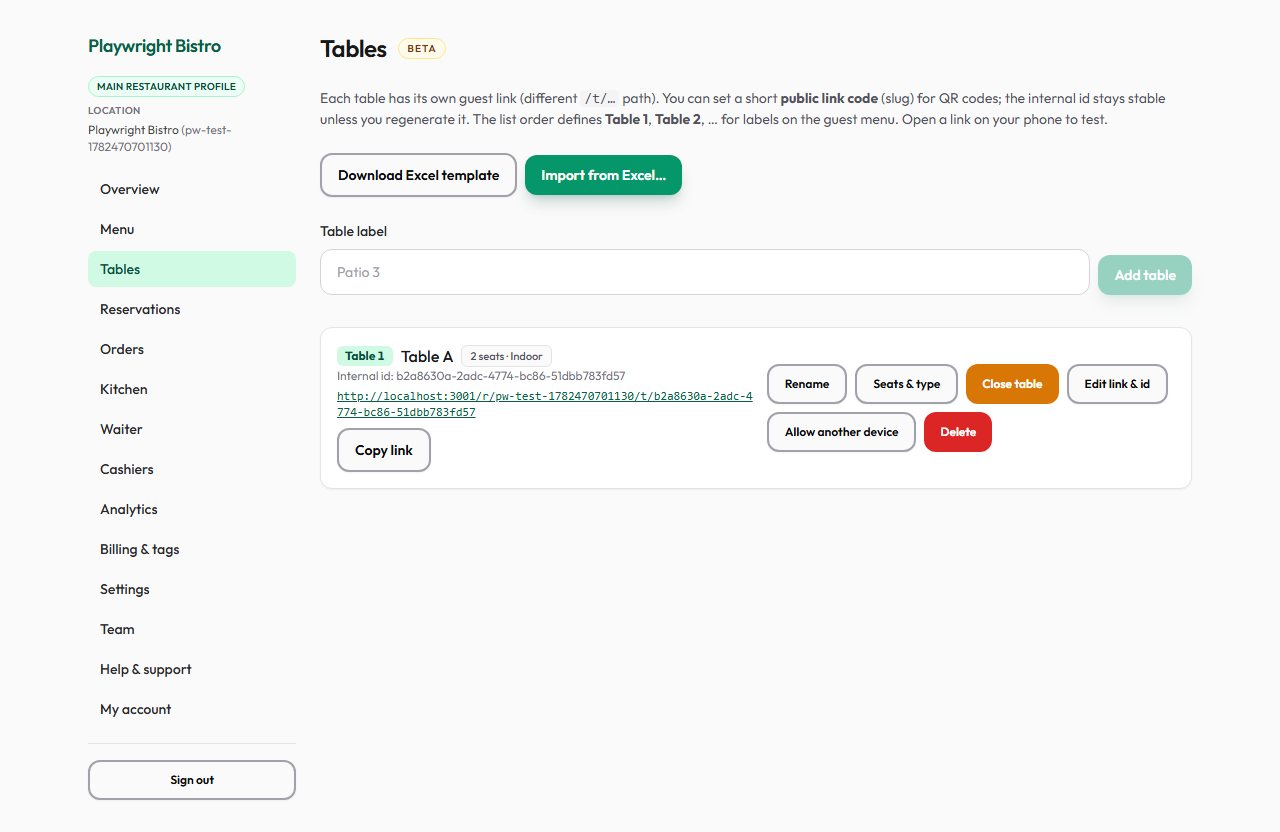
Each table has its own link and QR. Guests order from the table link, not the venue homepage alone.
- Add a table for each physical seat group.
- Copy or print the QR / link and place it on the table.
- Rename tables for floor staff (Table 1, Patio 3, etc.).
- Use Close table when guests leave to clear the shared cart.
Reservations
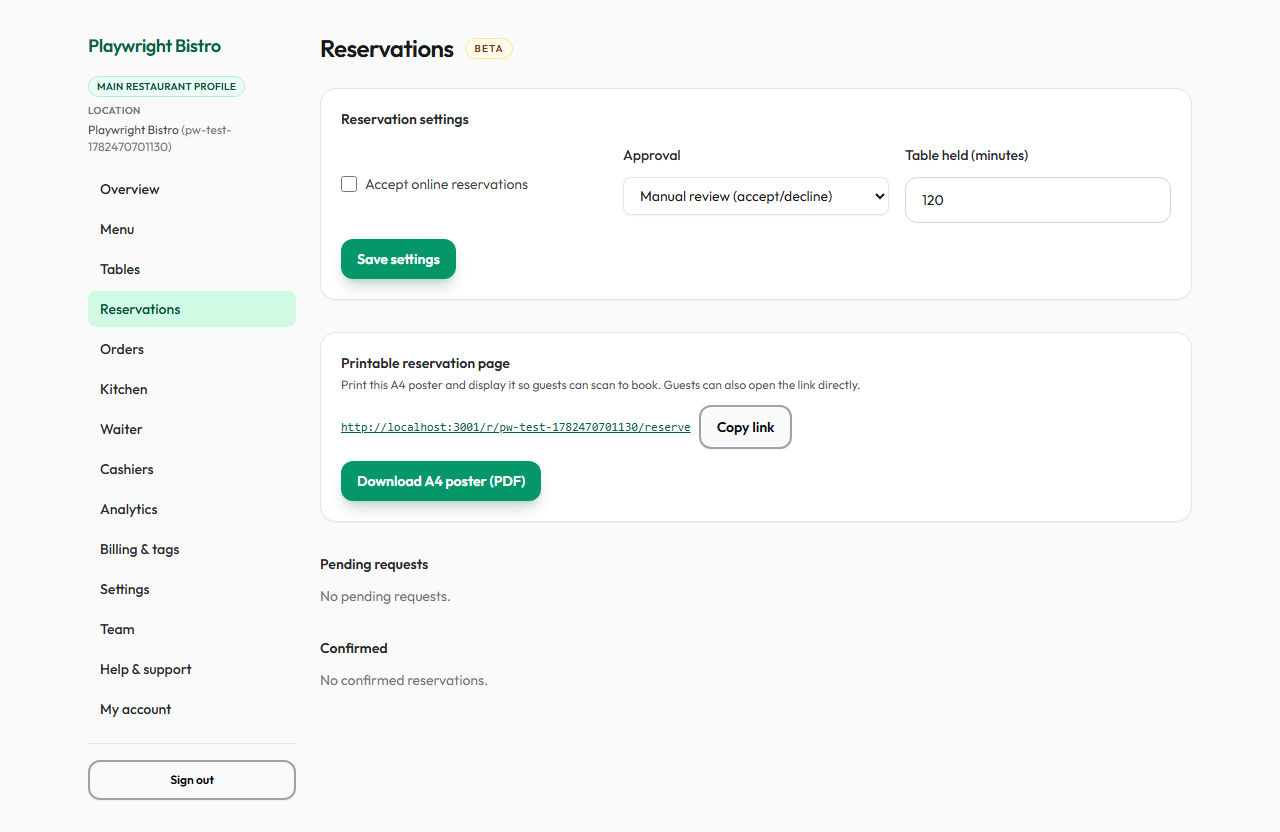
Manage bookings when reservations are enabled. Guests book via the public flow.
- Open Reservations for upcoming bookings by date and time.
- Confirm, seat, or cancel as service runs.
- Enable or disable reservations in Settings.
Open Reservations in dashboard →
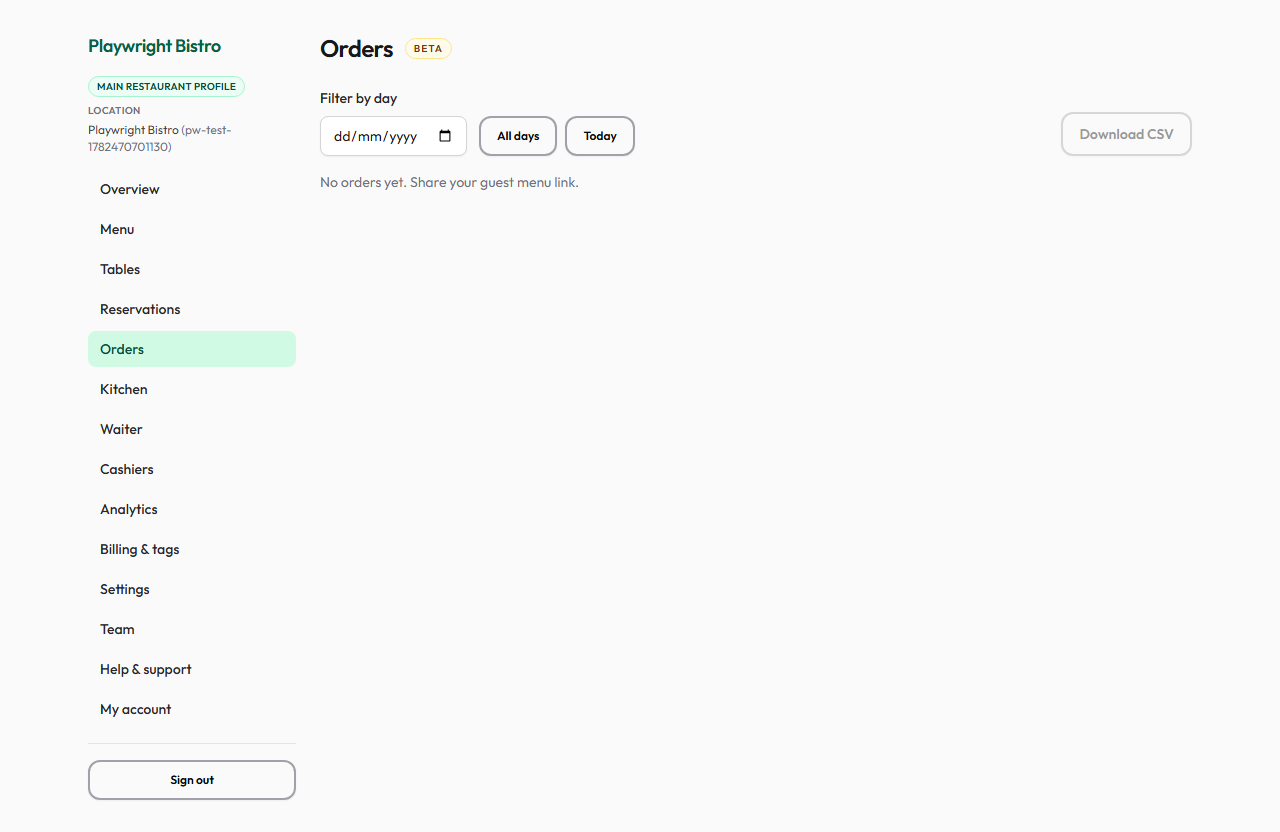
Orders
Live guest orders from new through served.
- Watch new orders during service.
- Update status as the kitchen and floor progress.
- Filter or search when the list is busy.
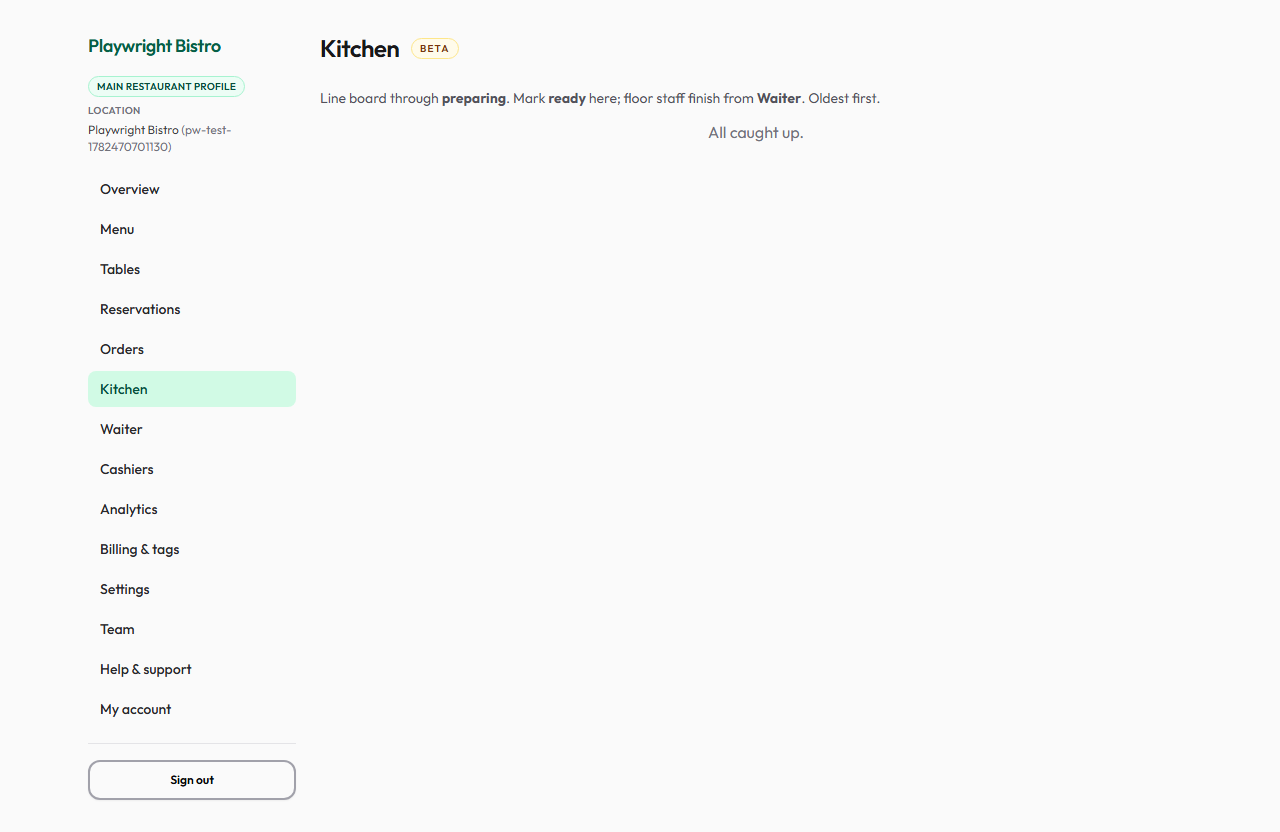
Kitchen
Board view for the line — tickets grouped by order.
- Open Kitchen on a kitchen tablet.
- Mark items or whole orders ready when prepared.
- Status syncs to Orders and the guest device.
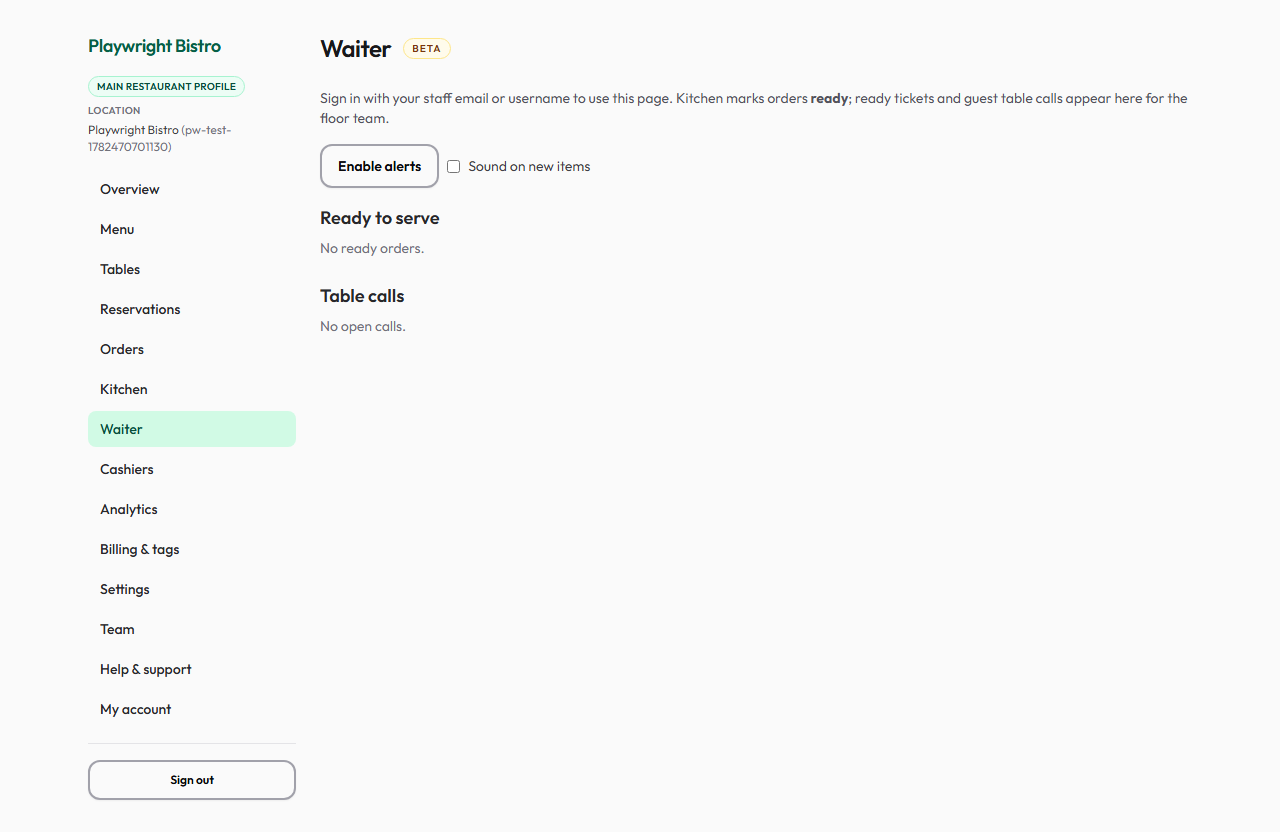
Waiter
Floor view on a trusted device: tables, active orders, and call-waiter requests.
- Open Waiter on a staff phone or tablet.
- Trust the device once (owner or manager approval).
- Respond to table calls and check order status on the floor.
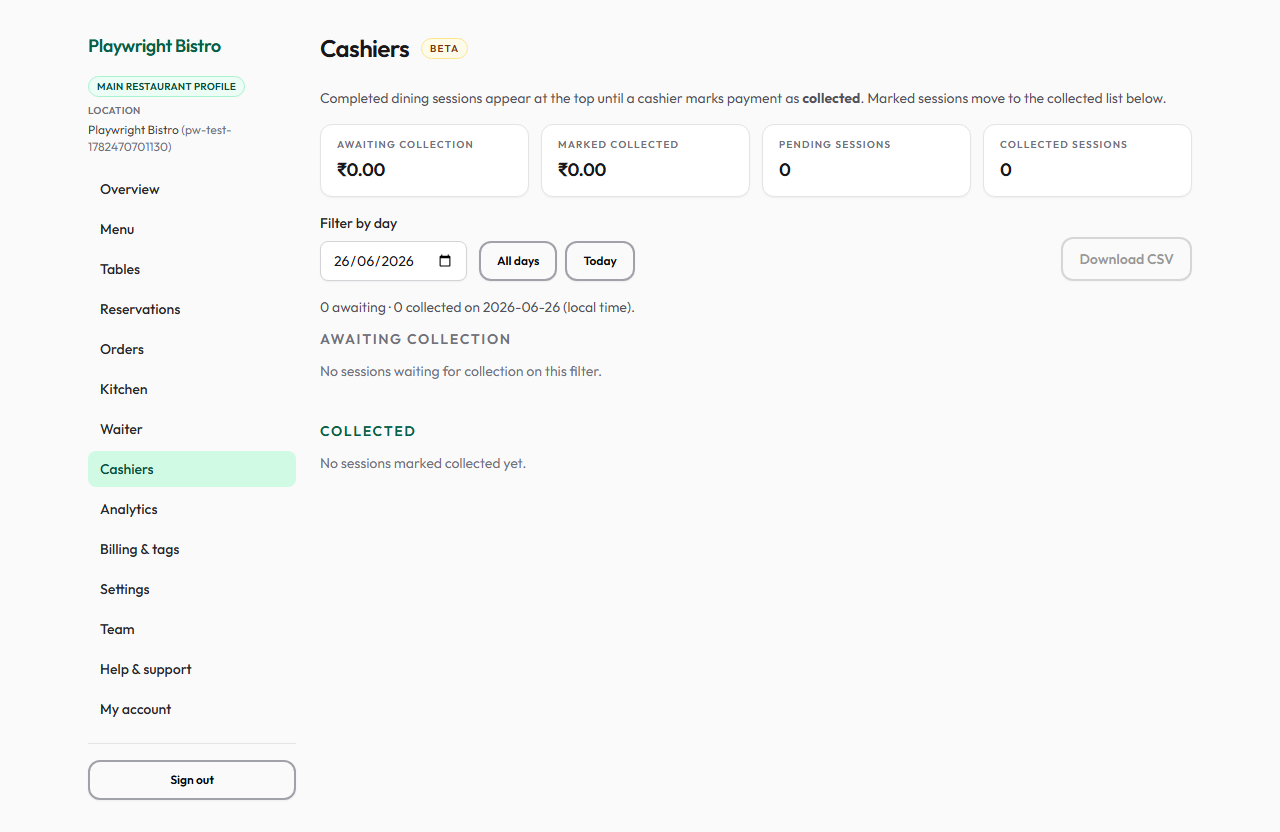
Cashiers
Open table bills and payment collection at closing or handover.
- Open Cashiers at closing or shift handover.
- Review tables with open balances.
- Mark collections when payment is taken.
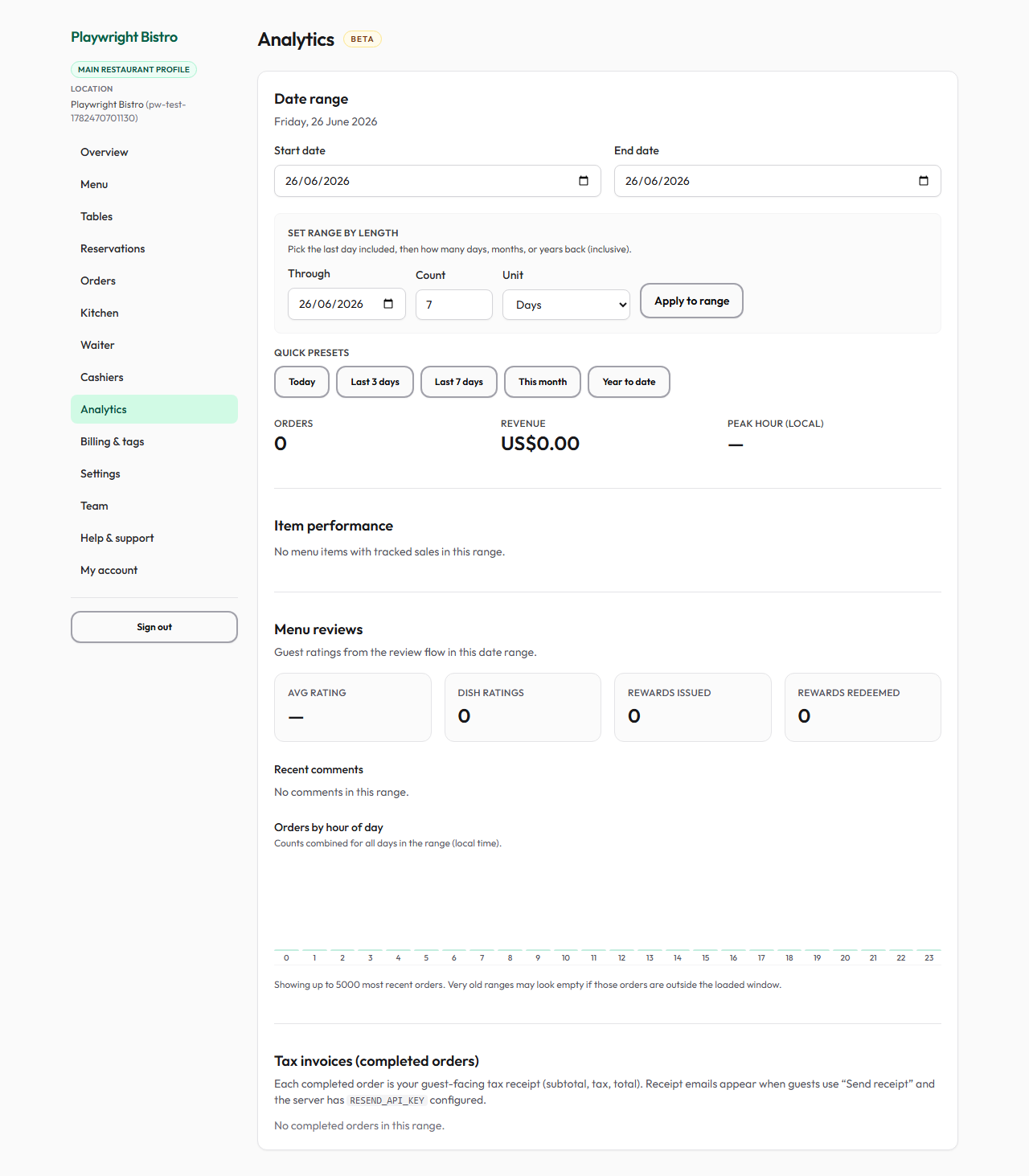
Analytics
Revenue trends, popular dishes, and operational snapshots.
- Pick a date range.
- Review top items and order volumes.
- Use reports for planning.
Billing & tags
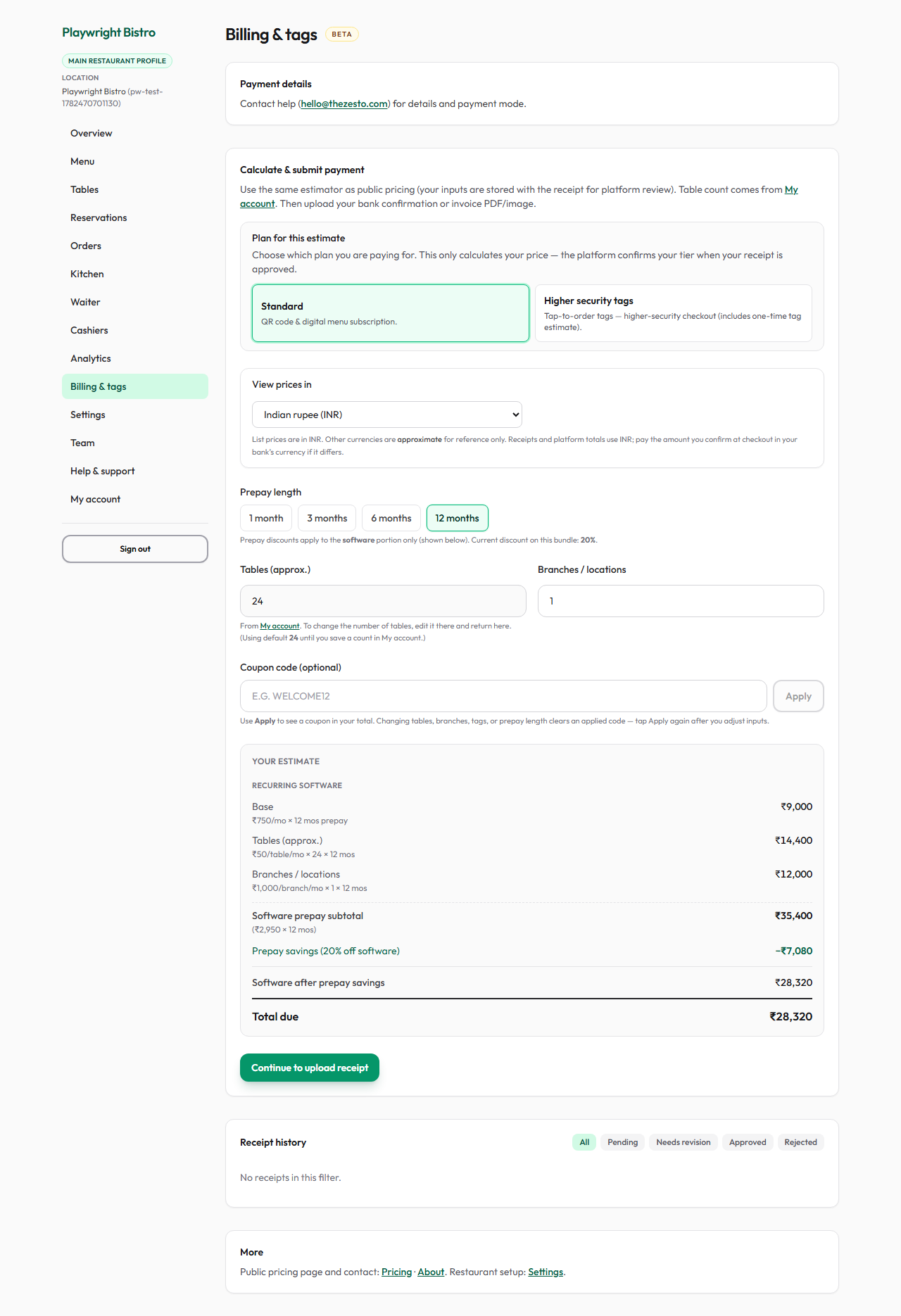
Subscription status and TapKey NFC setup for tap-to-order.
- Review plan and paid-through date.
- Contact platform support for an official quote or renewal.
- Configure TapKey batches when using physical tap stands.
Open Billing & tags in dashboard →
Settings
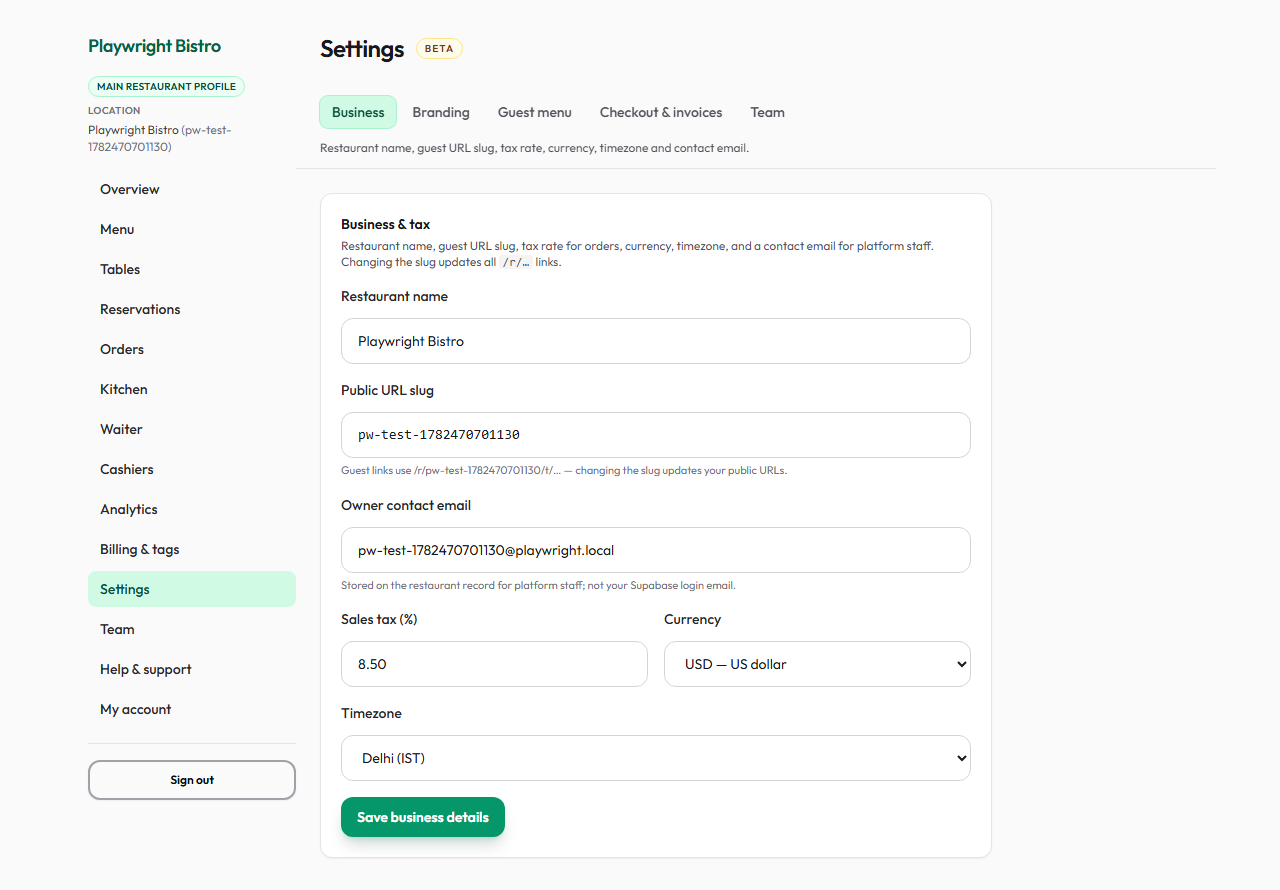
Branding, invoice rules, reservations, and guest entry mode (QR vs TapKey).
- Set guest menu layout and colour theme.
- Configure invoice and receipt policies.
- Set reservations, physical access, and entry mode.
Team
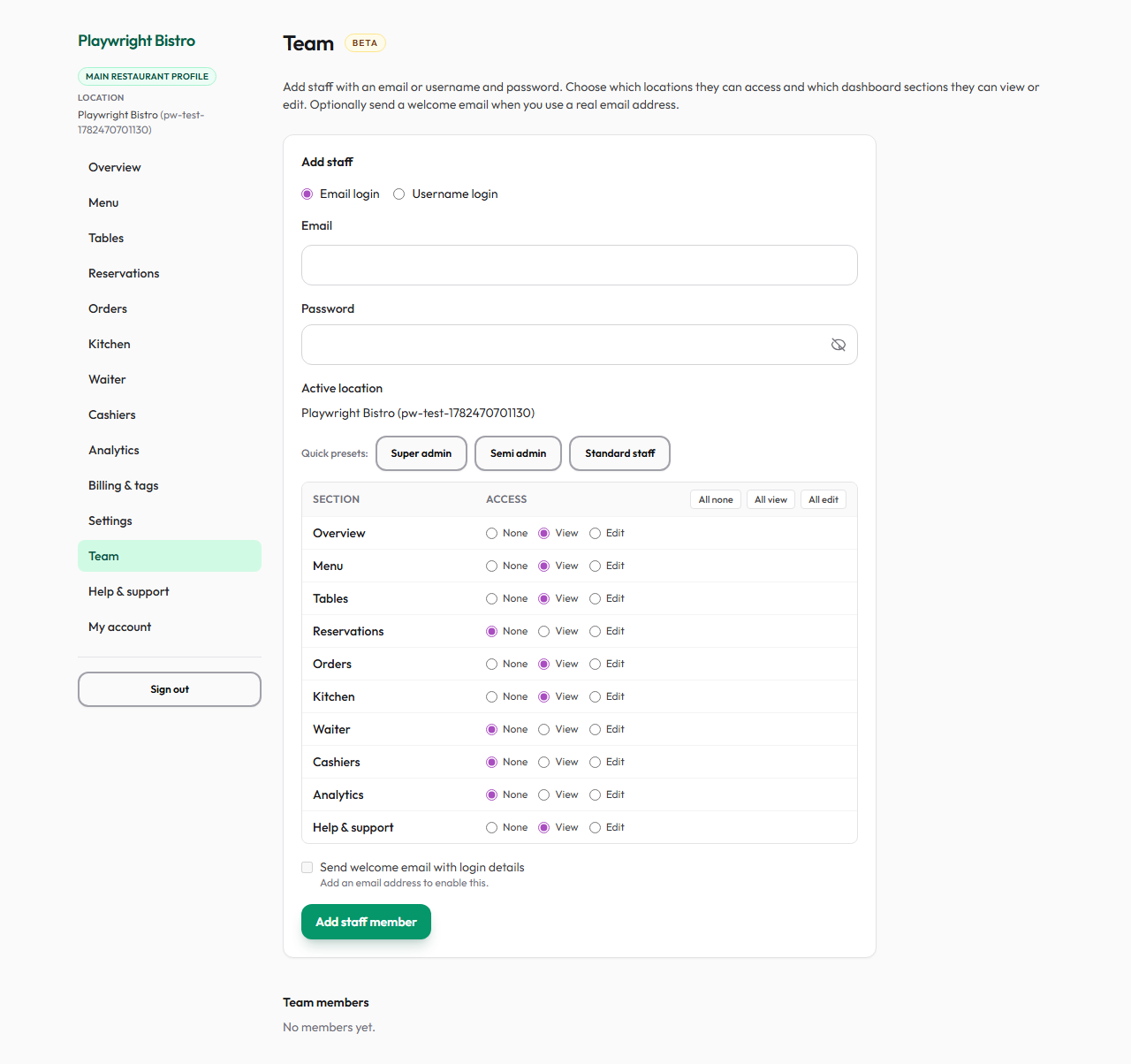
Staff logins with per-section view or edit access.
- Add a member with username and optional email.
- Apply a permission preset or set each section to view or edit.
- Staff sign in with username and see only allowed tabs.
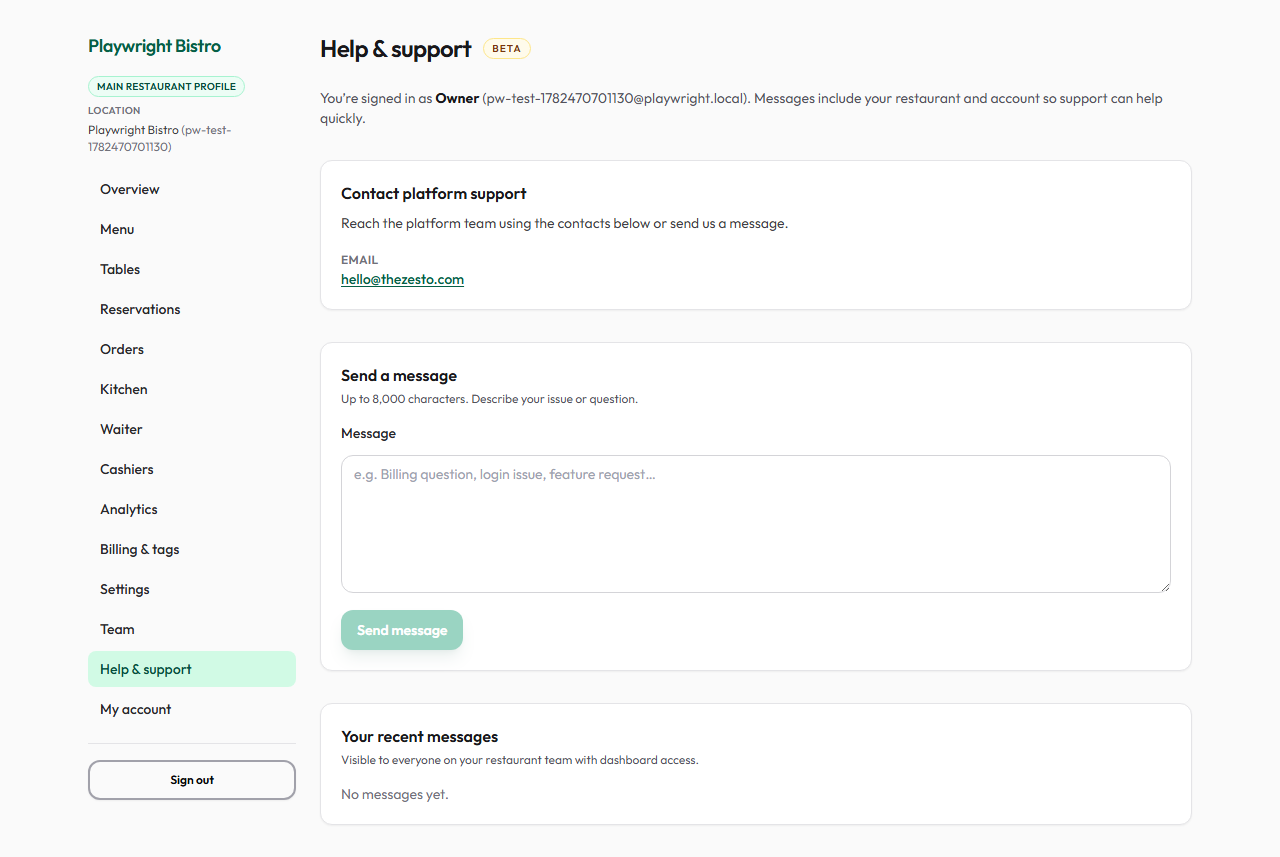
Help & support
Contact the platform team from the account. Messages include venue context.
- Review platform contact details.
- Send a message with the question or issue.
- Check recent messages for replies and status.
Open Help & support in dashboard →
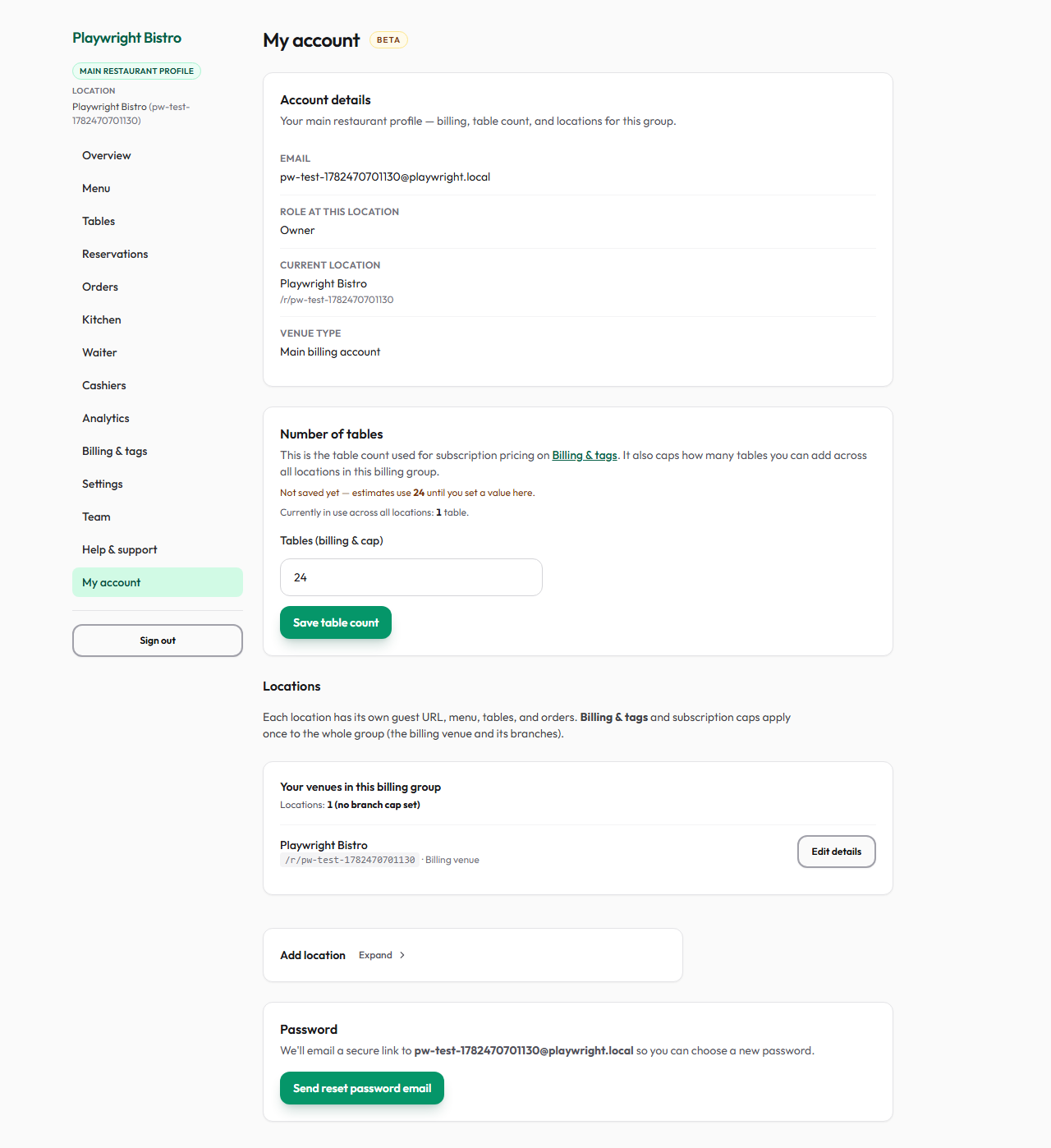
My account
Profile and branch locations under one billing account.
- Review account details.
- Add or switch locations from Locations.
- Adjust table-count limits on multi-branch plans when needed.
Open My account in dashboard →